YouTube Shorts now receive over 70 billion daily views worldwide, making them one of the most powerful tools for creators to grow their audience. But here's what many creators overlook: your Shorts thumbnail can make or break your content's performance outside the Shorts feed.
While Shorts auto-play in the dedicated feed, thumbnails appear in search results, channel pages, suggested videos, and the desktop Shorts shelf. A compelling thumbnail can dramatically improve your click-through rate (CTR) in these surfaces — and YouTube's algorithm takes CTR into account when deciding which Shorts to recommend.
In this guide, we'll walk you through every method to change your YouTube Shorts thumbnail, the exact specifications you need, and professional tips to make your thumbnails stand out.
Why Your Shorts Thumbnail Matters
Many creators assume Shorts thumbnails don't matter because Shorts auto-play in the vertical feed. This is only half true.
Your Shorts thumbnail appears in multiple places across YouTube:
- Search results — when users search for topics related to your Short
- Channel page — the Shorts tab on your channel displays thumbnails
- Suggested videos — YouTube may recommend your Short alongside regular videos
- Desktop Shorts shelf — the horizontal row of Shorts on YouTube's homepage
- External embeds and shares — when your Short is shared on social media or websites
In all of these contexts, the thumbnail is the first impression viewers get. A well-designed thumbnail signals professionalism and gives viewers a reason to click.
Method 1: Change Thumbnail via YouTube Mobile App (Recommended)
The YouTube mobile app remains the most reliable method for changing Shorts thumbnails. This works on both Android and iOS.
During Upload (Before Publishing)
- Open the YouTube app and tap the (+) button at the bottom of the screen
- Select Create a Short or upload an existing video clip
- After editing, tap the checkmark to proceed to the details screen
- Look for the pencil icon (✏️) in the top-left corner of the video preview
- A frame slider will appear at the bottom of the screen
- Slide through the frames to find the most visually compelling moment
- Tap Done to confirm your selection
- Fill in your title, description, and other details, then publish
After Publishing (Editing an Existing Short)
- Open the YouTube app and tap your profile icon in the bottom-right corner
- Select View channel under your profile name
- Tap Manage videos
- Switch to the Shorts tab
- Find the Short you want to edit and tap the three dots (⋮) on the right side
- Select Edit
- Tap the pencil icon over the thumbnail preview in the top-left corner
- Use the frame slider to choose your new thumbnail
- Tap the checkmark in the top-right corner to confirm
- Tap Save
Note: The post-upload editing option may not be available on all accounts. If you don't see the pencil icon after publishing, you'll need to use the YouTube Studio desktop method instead.
Method 2: Change Thumbnail via YouTube Studio (Desktop)
YouTube Studio on desktop now offers full thumbnail editing for Shorts, including custom image uploads.
Standard Method
- Go to studio.youtube.com in your browser
- Click Content in the left sidebar
- Switch to the Shorts tab to filter your content
- Find the Short you want to edit and click the pen icon (pencil) next to it
- Scroll down to the Thumbnail section
- You'll see two options:
- Upload thumbnail — upload a custom-designed image
- Auto-generated — select from YouTube's automatically generated frames
- Choose your preferred option and click Save
Using Test & Compare (A/B Testing)
YouTube Studio now includes a Test & Compare feature that allows you to A/B test different thumbnails:
- In the thumbnail section of your Short's details, click Test & Compare
- Upload up to 3 different custom thumbnail images
- YouTube will automatically show each version to different segments of your audience
- After sufficient data is collected, YouTube determines the winner based on watch time share
- The winning thumbnail becomes the default
This feature is gradually rolling out and may not be available in all regions. It's an excellent way to optimize your thumbnail without guessing.
Method 3: Upload a Custom-Designed Thumbnail
Instead of selecting a frame from your video, you can design and upload a completely custom thumbnail image. This is the professional approach used by top creators.
Thumbnail Specifications
| Specification | Requirement |
|---|---|
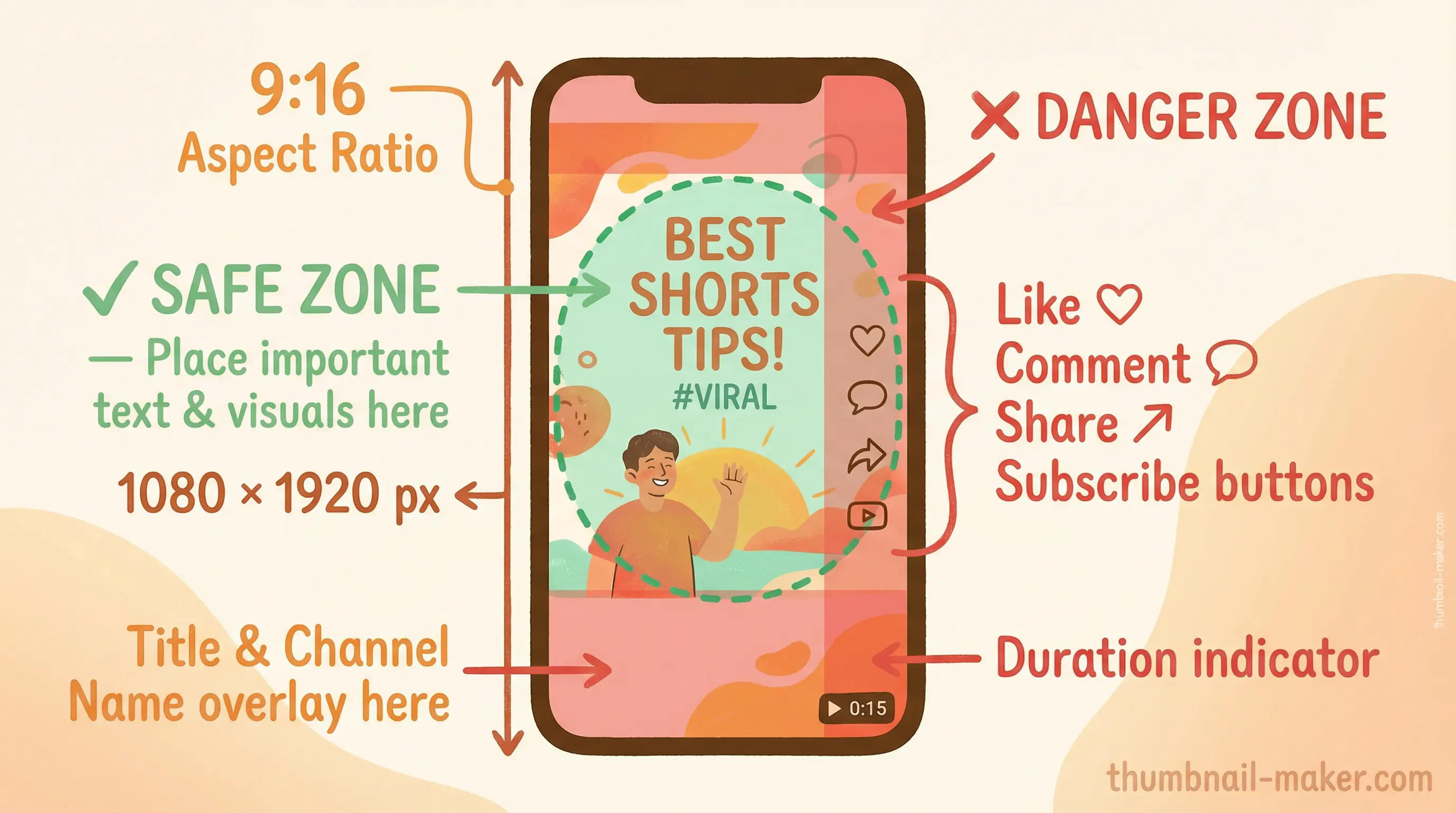
| Dimensions | 1080 × 1920 pixels |
| Aspect Ratio | 9:16 (vertical) |
| File Formats | JPG, PNG, or GIF |
| Maximum File Size | 2 MB |
| Color Space | sRGB |
Important: Shorts thumbnails use a 9:16 vertical format, which is the reverse of standard YouTube video thumbnails (16:9 horizontal at 1280 × 720 pixels). Make sure you're designing in the correct orientation.
Safe Zones — Where NOT to Place Text
YouTube overlays UI elements on top of your Shorts thumbnail in certain views. Avoid placing critical text or design elements in these areas:
- Bottom area — the video title, channel name, and action buttons (Like, Comment, Share) overlay the bottom portion
- Bottom-right corner — the duration indicator appears here
- Right edge — action buttons (Like, Share, Subscribe) appear along the right side in the Shorts player
Keep your most important visual elements in the center and upper portion of the thumbnail for maximum visibility.
Design Workflow
- Create your canvas — set up a 1080 × 1920 pixel document in your design tool
- Design your thumbnail — add your image, text, and branding elements
- Check safe zones — ensure no critical elements are in overlay areas
- Export as JPG — compress to stay under the 2 MB file limit
- Upload via YouTube Studio — use the desktop method described above
Pro Tip: Embed Thumbnail in Video
If custom upload isn't available on your account, there's a workaround:
- Design your thumbnail image (1080 × 1920 pixels)
- In your video editor (DaVinci Resolve, Premiere Pro, CapCut, etc.), add the thumbnail as the first frame of your video for 0.1–0.5 seconds
- Upload the video to YouTube via the mobile app
- Use the frame selector to choose the embedded thumbnail frame
- This ensures your custom design appears as the thumbnail
Thumbnail Design Best Practices
Typography
- Use bold, sans-serif fonts for maximum readability at small sizes
- Limit text to 3–5 words maximum — thumbnails are viewed at small sizes on mobile
- Add a text shadow or outline to ensure legibility against any background
- Use a font size of at least 80px in your 1080 × 1920 design
Color and Contrast
- Use high-contrast color combinations — bright text on dark backgrounds or vice versa
- YouTube's interface is predominantly white (light mode) or dark gray (dark mode) — choose colors that stand out against both
- Warm colors (red, orange, yellow) tend to attract attention in feeds
- Avoid colors that blend with YouTube's red brand color
Composition
- Place the subject's face prominently — human faces naturally draw attention
- Use the rule of thirds — position key elements along the intersecting lines
- Create visual hierarchy — make the most important element the largest
- Leave breathing room around text — don't crowd elements together
Consistency
- Develop a recognizable thumbnail style for your channel
- Use consistent fonts, colors, and layout patterns across your Shorts
- This builds brand recognition and makes your content instantly identifiable in the feed
Recommended Design Tools
| Tool | Best For | Price |
|---|---|---|
| Canva | Quick designs with templates | Free / $12.99/mo |
| Adobe Photoshop | Professional-grade editing | $20.99/mo |
| Figma | Template systems and collaboration | Free / $12/mo |
| ThumbnailMaker | AI-powered thumbnail generation | Free tier available |
| CapCut | In-app thumbnail from video frames | Free |
Troubleshooting Common Issues
Pencil Icon Not Appearing on Mobile
- Ensure you're using the official YouTube app (not YouTube Studio app or browser)
- The frame selector is primarily available during the upload process
- Try accessing through: Profile → View channel → Manage videos → Shorts tab → Three dots → Edit
- Update your YouTube app to the latest version
Custom Upload Button Not Showing on Desktop
- Your account may need to be verified — go to youtube.com/verify
- The feature may not be available in your region yet
- Try clearing your browser cache and reloading YouTube Studio
- Use the mobile app method as an alternative
Thumbnail Not Updating After Changes
- Ensure you clicked Save or Done after making changes
- YouTube may take a few minutes to several hours to propagate thumbnail changes across all surfaces
- Clear your browser cache or app cache to see the updated version
- Check on a different device or in an incognito window
Thumbnail Rejected by YouTube
YouTube may reject thumbnails that violate their Community Guidelines:
- No misleading content — thumbnail must accurately represent the video
- No sexually suggestive imagery — even if the video content is appropriate
- No violence or graphic content — avoid shocking or disturbing images
- No hate speech or symbols — this includes text on thumbnails
- No custom thumbnails on age-restricted content
How Shorts Thumbnails Display Across Surfaces
Understanding where and how your thumbnail appears helps you design more effectively:
| Surface | Display Format | Thumbnail Visible? |
|---|---|---|
| Shorts feed (mobile) | Full-screen vertical player | No — video auto-plays |
| Shorts shelf (desktop) | Small vertical card | Yes — thumbnail shown |
| Search results | Horizontal card with metadata | Yes — may be cropped |
| Channel Shorts tab | Grid of vertical cards | Yes — full thumbnail |
| Suggested videos | Small horizontal card | Yes — may be cropped to 16:9 |
| External shares | Preview card | Yes — thumbnail shown |
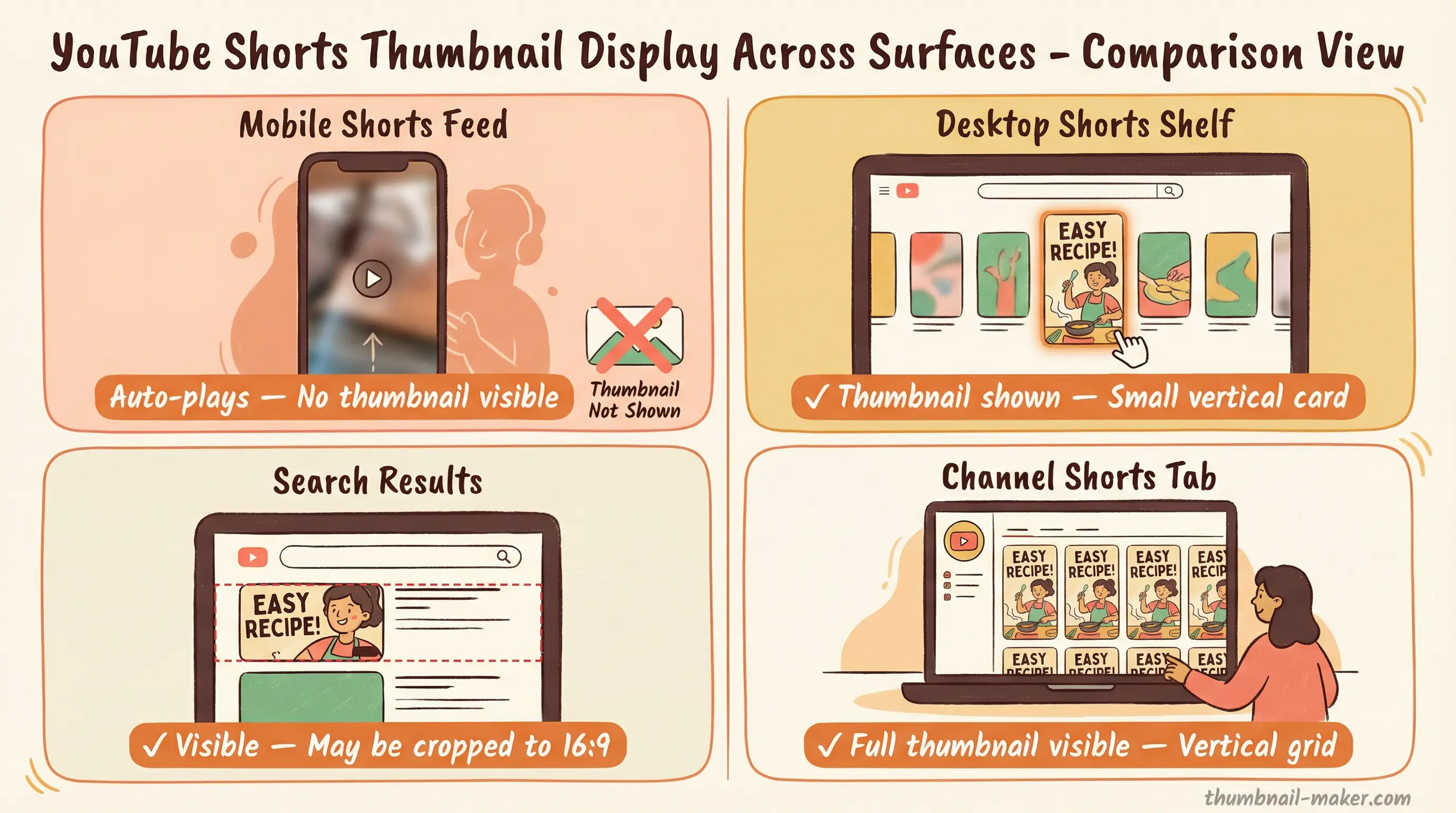
Key insight: Your thumbnail is most impactful on the desktop Shorts shelf, channel page, and search results. Optimize for these surfaces while keeping the vertical 9:16 format.
Summary
Changing your YouTube Shorts thumbnail is straightforward once you know the right method:
- Mobile app — best for frame selection during or after upload
- YouTube Studio desktop — best for custom image uploads and A/B testing
- Custom design — create a 1080 × 1920px image for the most professional look
The key takeaway: don't leave your thumbnail to chance. Even though Shorts auto-play in the feed, a strong thumbnail drives clicks from search, suggested videos, and your channel page — surfaces that can significantly expand your audience.
Start with a clear, high-contrast design, keep text minimal, and always check your safe zones. Your next Shorts thumbnail could be the difference between 100 views and 100,000.